

For a parent you miss
A quiet way to hug a loved one who passed away on a birthday, an anniversary or Father's Day — a calm embrace in morning light above the clouds.
Reunite with someone you miss in a soft, heavenly embrace. XImagineAI — The Grok Imagine Alternative, with dozens of AI video models in one place.
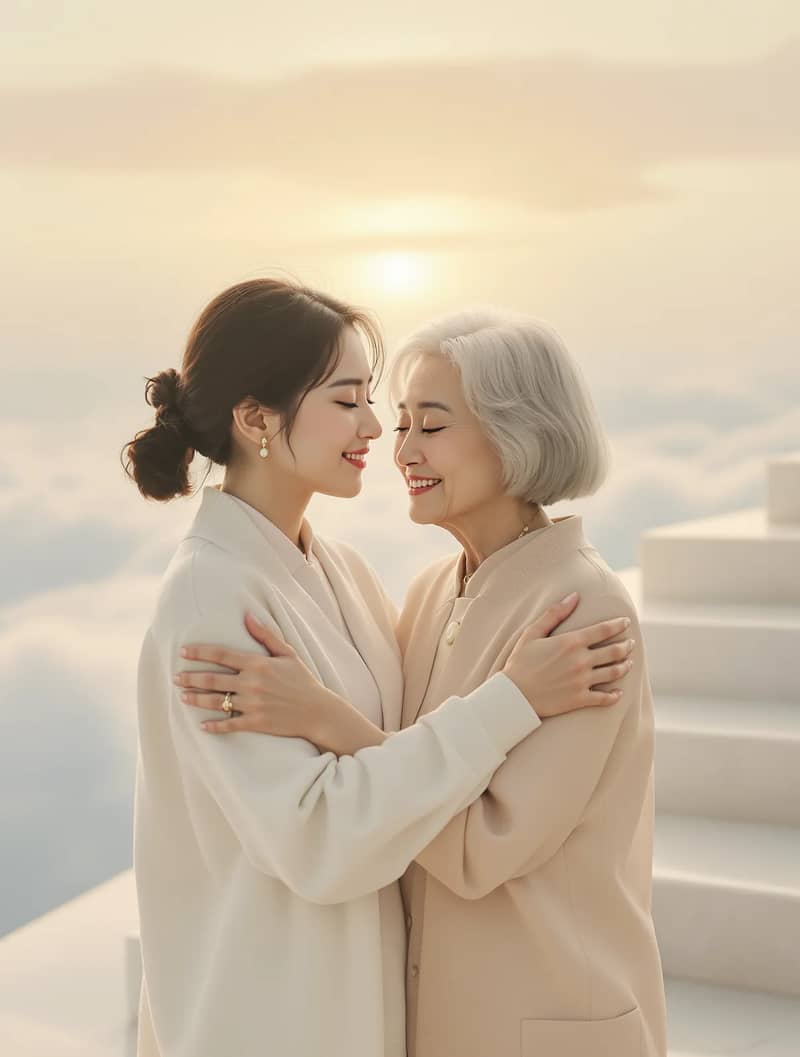
Hug in heaven is an AI video effect that turns two portraits — one of you and one of a loved one who passed away — into a short, symbolic scene: you walk up softly glowing steps among white clouds and warm golden light, and the two of you share a long, gentle embrace. People create these remembrance videos for an anniversary of a passing, for holidays such as Día de Muertos, Mother's Day or Christmas, or to play quietly at a memorial gathering. It is an imagined keepsake, not a recording — a way to picture one more hug with someone you miss. The scenes below are illustrations; your video depends on your photos and the model you choose.

A quiet way to hug a loved one who passed away on a birthday, an anniversary or Father's Day — a calm embrace in morning light above the clouds.

A gentle moment for a wedding anniversary or a memorial service — two people meeting again, as imagined, on a sunlit staircase of light.
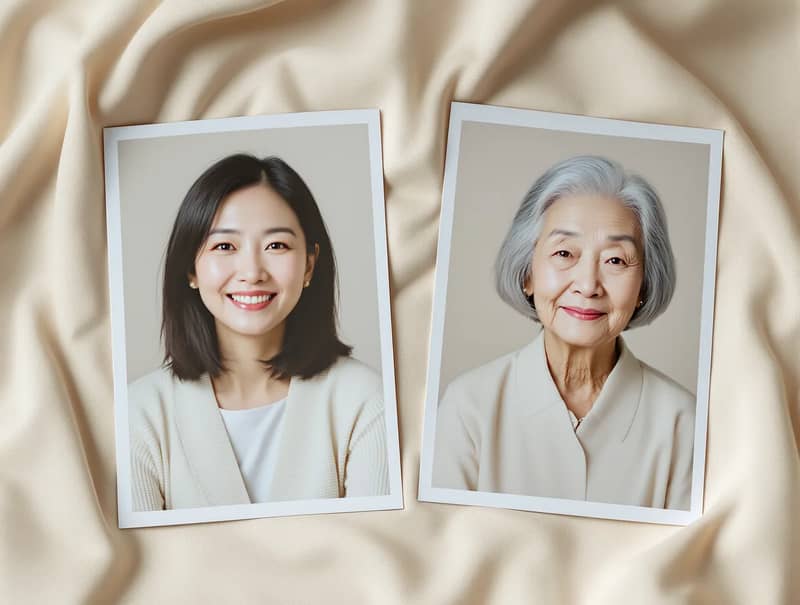
Add your own photo in the first slot and a photo of your loved one in the second. Clear, front-facing, evenly lit half-body portraits give the most natural result.

Pick Grok Imagine or Seedance 2 Mini, then set the aspect ratio, resolution and sound. The heavenly scene and the slow walk toward the embrace are already written for you.

Generate your short clip, watch the preview, and download the version you want to keep or share with family.
It is a short AI memorial video from photos: you and a loved one who has passed walk toward each other among soft clouds and golden light and share a gentle embrace. It is an AI-made, artistic keepsake — not real footage.
Yes. The effect is built for two separate photos: one of you and one of your loved one. Order matters — the person in the first photo walks up the steps, and the person in the second photo waits at the top. Use one person per photo for the best result.
Each video uses credits, and the exact cost is shown on the generate button before you start. New accounts receive a small number of starter credits and you can earn more through the daily check-in; larger amounts are available on the pricing page.
Clear, front-facing portraits with even lighting, ideally from the waist up. Try to choose two photos with light coming from a similar direction. If an old family photo is faded or scratched, touch it up first with an image editor — a cleaner photo helps the model keep faces natural.
This effect supports two models that can use both portraits as references. Grok Imagine makes a 6-second clip with steady, natural motion; Seedance 2 Mini makes a 5-second clip and is good at keeping faces close to the photos. On XImagineAI you can switch between dozens of models with one account — browse them all on the Models page or use the Image to Video tool for your own prompts.
You can turn on sound in the panel to add AI-generated ambient audio. If you want a soundtrack, only use music you have the rights to, or create an original piece with the AI Music Generator on XImagineAI and add it in any video editor.
Only upload photos of yourself and of family members you have the right to use, and never photos of public figures or other people without permission. The result is an AI-generated, artistic remembrance video rather than a true record, so when you share it, we suggest noting that it was made with AI.
Your uploads and videos are linked to your account and kept for your creation history, and you can request deletion at any time. Please read the XImagineAI Privacy Policy for full details on how generation data is stored and used.