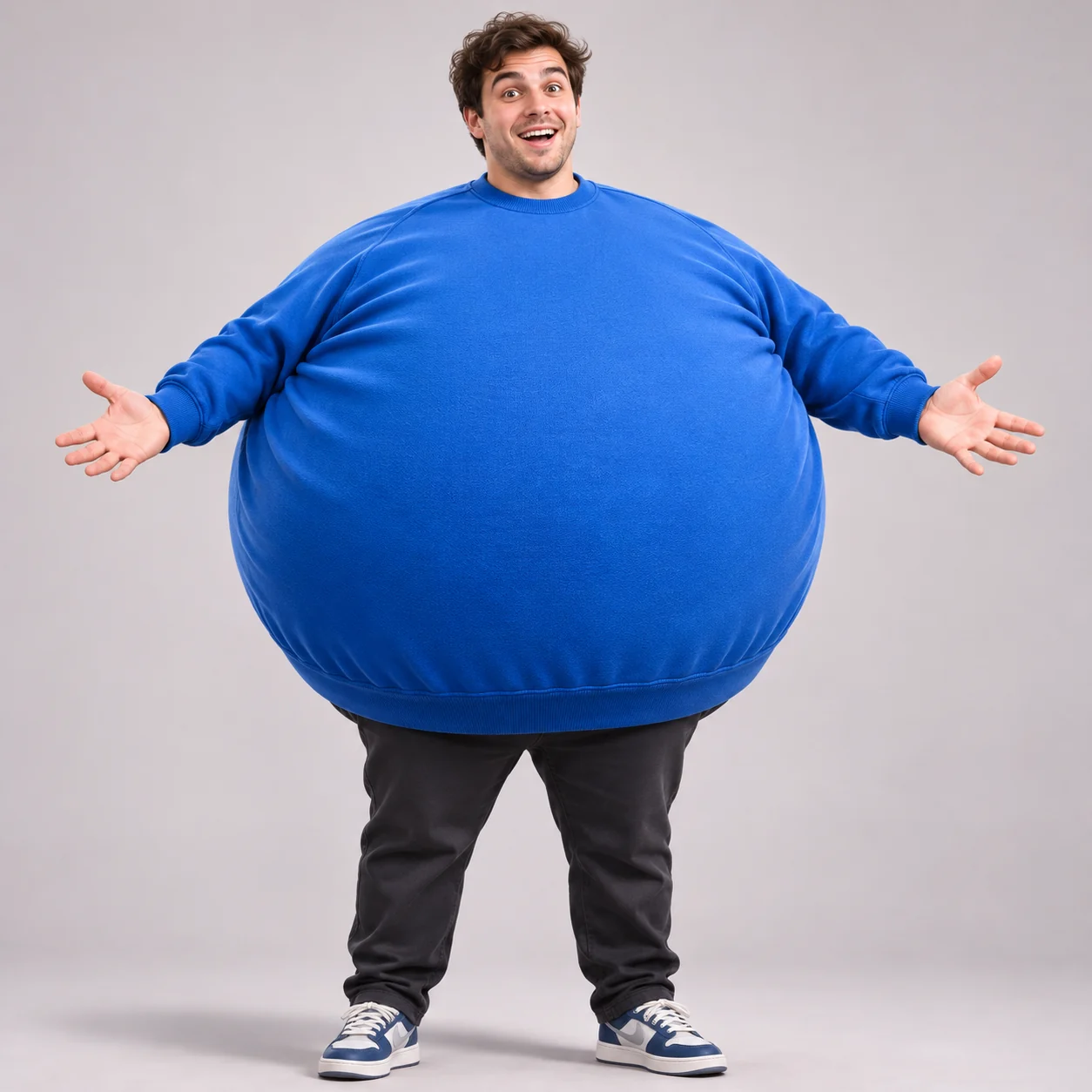
AI Inflation Effect: Turn Your Photo into a Balloon Video
Give an ordinary portrait an unexpected twist. Upload one person’s photo and use the AI inflation effect to turn it into a 5-second video with a playful, balloon-like body transformation. Choose your format, pick a resolution, and generate online without writing a prompt.
See the body inflation effect in motion
The animation starts with your photo, then expands the person’s torso into a rounded balloon shape before a brief wobble and hold. The preset is designed to keep the person recognizable, their clothing intact, and their feet on the ground.
Watch the example to get a feel for the transformation. Your source photo guides the person, outfit, and setting; the result can vary with framing, pose, and background.
- 5-second clips
- 480p or 720p
- 9:16 · 16:9 · 1:1
- Optional audio
How to create an AI inflation effect from a photo
- 1
Upload a person’s photo
Choose a clear photo of one person, ideally full-body or framed from the thighs up. Leave space beside the body so the expanding shape has room in the frame.
- 2
Choose the video settings
Select 9:16, 16:9, or 1:1 and either 480p or 720p. Switch audio on if you want generated sound, then check the credit cost shown before you generate.
- 3
Generate, preview, and download
Start generation and wait for your clip to finish. Preview the body inflation video, download it, and add captions or combine it with other clips in your preferred editor.
Make a balloon effect video for your next post
Use a short visual transformation as the punchline, a reaction, or a break between scenes.
Photo-to-video memes
Turn a straight-faced portrait into a comic surprise. The change from the original pose to an inflated silhouette gives you a visual punchline for a caption added afterward.
Exaggerated reaction clips
Use the balloon-like swell for a playful reaction to a big announcement or an over-the-top moment. Download the result to insert between scenes in a longer edit.
TikTok, Reels, and Shorts
Choose 9:16 for a vertical post, 1:1 for a square composition, or 16:9 for a horizontal edit. Match the framing to where you plan to share your clip.
Choose a photo with room to inflate
A readable pose and open framing give the AI more room to build the animation. Start with a photo where the outline of the person is easy to see.
Show the torso and limbs
Use a front-facing or gently angled standing pose. Keep hands away from the torso where possible; a close-up selfie leaves little visible body to animate.
Leave space around the person
Avoid cropping tightly against the shoulders, waist, or feet. Extra space on both sides helps keep the balloon shape within the shot as it expands.
Keep the subject clear
Choose one well-lit person against a simple background. Blur, overlapping people, and objects covering the body can make the transformation less consistent.
AI inflation effect: common questions
01What is an AI inflate effect?
02Can I create a belly inflation effect?
03What photo can I upload?
04How long is the video, and which resolutions are available?
05Can I generate the inflation video with sound?
06Is the AI Body Inflation Generator free?
07Why does the inflated body get cut off or look distorted?
Explore more AI video effects

AI Hug
Upload two photos and watch the two people share a warm hug.

AI Air Kiss
Upload a clear photo of one person to create a flying kiss video or looping GIF.

Christmas Photobooth AI
Turn two portraits into a 10-second Christmas photobooth video with festive outfits and playful poses.
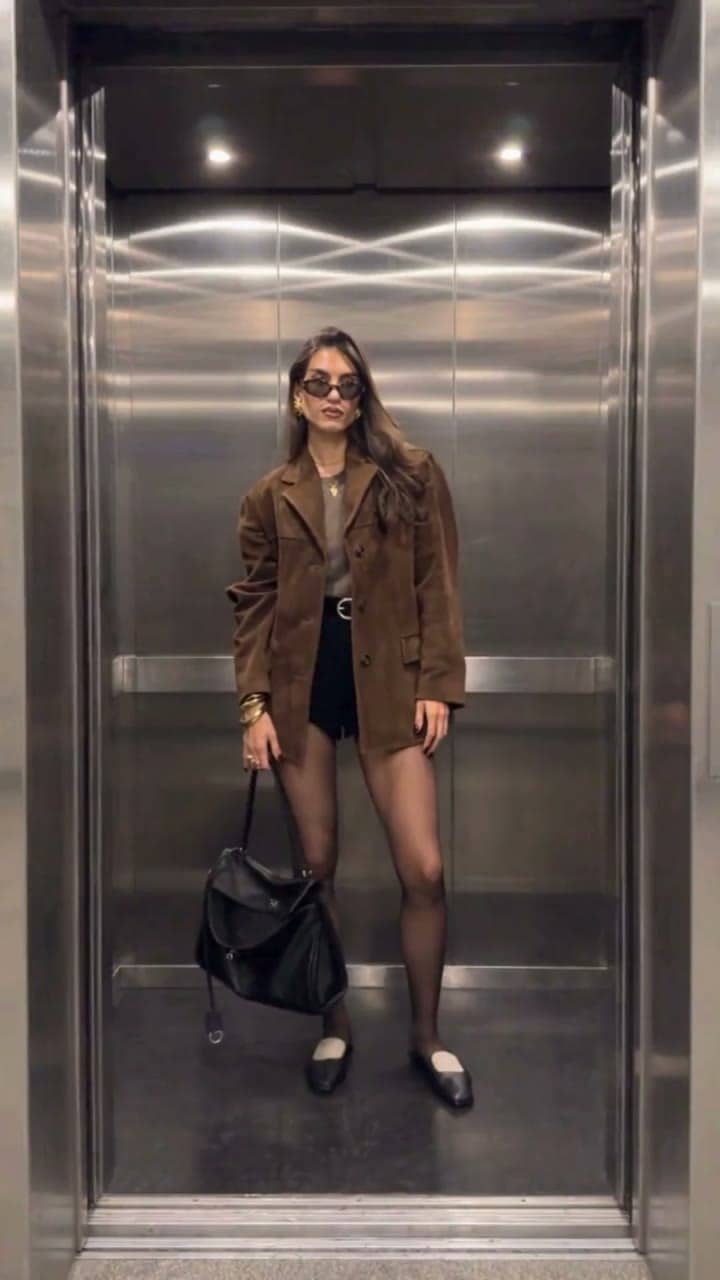
Elevator Outfit Change
The elevator doors close and open — and you step out in a new outfit, twice.

Hug in Heaven
Upload your photo and a loved one's photo for a gentle reunion hug in heaven.